
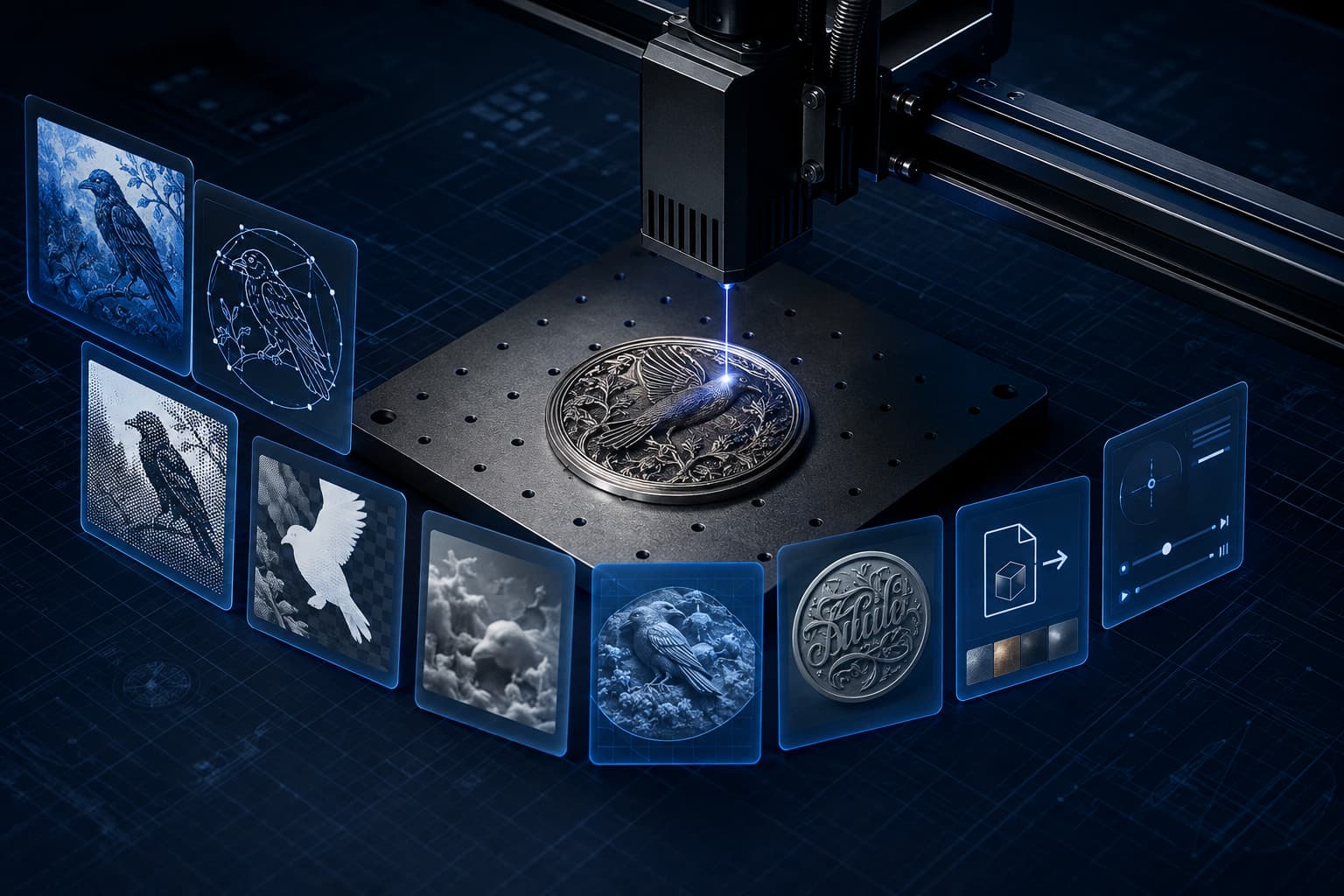
The best AI tool for laser engraving depends on the file you need next. Use ChatGPT Images or Midjourney to create artwork, Ideogram for text-heavy signs, Vectorizer.AI for clean SVG conversion, ImagR for photo preparation, and a dedicated depth-map tool such as DepthGen Pro, SculptOK, or Depth-R for 3D relief work.
That distinction matters because an attractive AI image is not automatically ready for a laser. A cutting job needs closed vector paths. A photo engraving needs controlled contrast and dithering. A 3D Sliced job needs a real depth map, not an ordinary grayscale photograph. Asking one tool to do every stage usually creates extra cleanup.
This guide compares ten useful tools by the job they perform. Voxelase makes DepthGen Pro, so its inclusion is disclosed rather than disguised as an independent award. Prices and feature limits can change. Check each linked product page before buying.
The short answer: best AI laser tools by job
| Tool | Best for | Typical output | Runs locally? |
|---|---|---|---|
| DepthGen Pro | Private depth-map and relief production | PNG, EXR, STL, OBJ | Yes, Windows |
| SculptOK | Fast cloud depth maps and reliefs | Depth maps, STL, 3D results | No |
| Depth-R | Browser-based depth-map editing | PNG, STL | No |
| LaserBurn AI | Prompt or photo to laser-ready assets | SVG, DXF, PNG | No |
| ImagR | Preparing photos for engraving | PNG, LightBurn project | Browser workflow |
| Vectorizer.AI | Converting raster art into vectors | SVG and other vector formats | No |
| ChatGPT Images | Prompting and conversational revisions | Raster images | No |
| Midjourney | Stylized engraving artwork | Raster images | No |
| Ideogram | Signs, names, and text-led designs | Raster images | No |
| Adobe Firefly | AI creation inside an Adobe workflow | Raster and editable creative assets | No |
If you only want one recommendation, choose by bottleneck. Generate the design with an image model, convert it with a vector tool when the machine needs paths, or use a depth-map tool when brightness must represent physical depth. LightBurn or your machine software remains the final control layer.
How we compared the tools
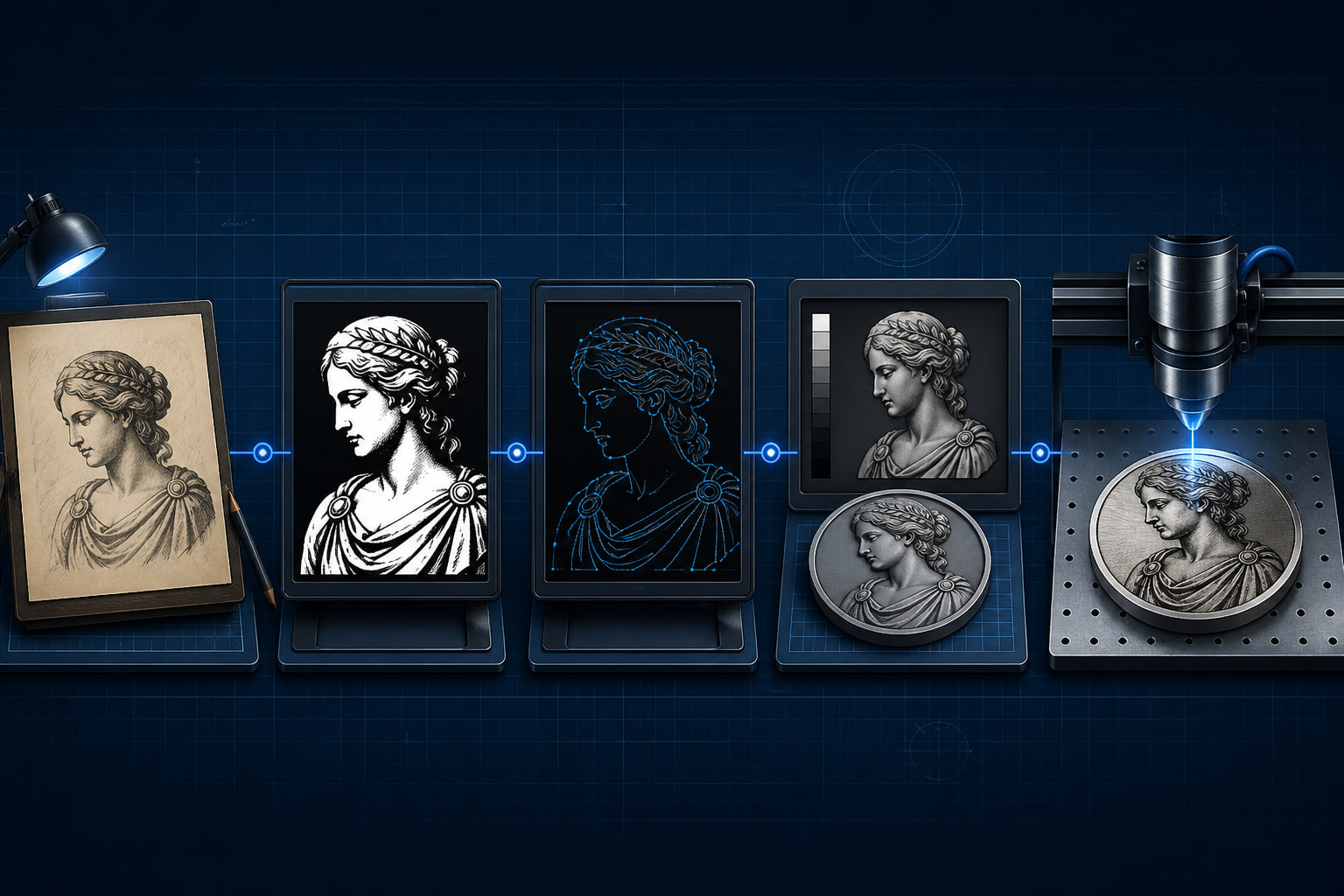
A laser workflow has a stricter definition of useful than a general AI-art review. We compared each product against five practical questions:
- Does it solve a real production stage? Generating a beautiful picture is useful, but it is a different task from producing an SVG, a dithered bitmap, or a depth map.
- What file leaves the tool? Output format determines whether the next application can use the result without reconstruction.
- How much control remains? A one-click result is fast. Sliders, masks, cleanup, and export controls matter when client work needs correction.
- Where is the image processed? Cloud tools are convenient. Local software is preferable for confidential customer photos, repeat production, or unreliable internet.
- Does the pricing model fit repeated work? Credits are sensible for occasional jobs. A subscription or one-time desktop license can be cheaper at higher volume, depending on the actual workload.
We did not pretend to run identical physical engravings through every paid platform. The comparisons below use official product documentation and focus on capabilities that can be verified. Final output still depends on the source image, material, optics, focus, power, speed, frequency, line interval, and cleanup process.
1. DepthGen Pro: best for offline depth maps and relief production
DepthGen Pro is the most specialized tool in this list. It turns images into depth maps and relief geometry for laser engraving, CNC carving, and 3D printing. Its main advantage is not a generic “AI” badge. It is the combination of local processing, fabrication-oriented controls, and production exports.
The current Windows application includes multiple local depth models, automatic image classification, relief-oriented reconstruction, detail transfer, manual height editing, smoothing, background handling, batch processing, and 3D preview. It exports 8-bit and 16-bit PNG, EXR, STL, and OBJ. That makes it useful when the depth map is an intermediate production asset rather than the final picture.
Choose it when: customer images must remain offline, you produce depth maps repeatedly, or you need editable relief output instead of a single cloud result.
Skip it when: you only need decorative 2D line art or a quick SVG. It is a Windows depth and relief application, not a general vector illustrator or laser controller.
2. SculptOK: best for quick cloud-generated reliefs
SculptOK is a cloud service built around depth maps, bas-relief, STL generation, and related image tools. It is attractive when you want to upload an image and receive candidates without installing a local model stack.
Its strength is convenience. The tradeoff is the normal cloud-tool bargain: uploads leave your machine, generation uses credits, and revision depends on the controls the service exposes. That can be perfectly reasonable for occasional hobby work. It is less attractive for private client portraits or a shop that wants predictable offline throughput.
Choose it when: speed and a low setup burden matter more than local processing.
Skip it when: the source is confidential, you need deep manual repair, or credit-based output becomes expensive at your volume.
3. Depth-R: best browser-based depth-map editor
Depth-R combines online depth generation with practical controls for highlights, black level, detail, denoising, background removal, depth, and STL thickness. Its live preview makes it easier to judge whether the surface is moving in the right direction before export.
It sits between a one-button generator and a full desktop workflow. You can adjust the result and export PNG or STL without installing a Windows application. The official product page uses subscription pricing, so compare the recurring cost against how often you generate.
Choose it when: you want cloud convenience but need more editing control than a basic generator.
Skip it when: offline privacy, batch ownership, or a one-time license is the priority.
4. LaserBurn AI: best all-in-one route from idea to SVG and DXF
LaserBurn AI is designed around laser-ready deliverables rather than general image generation. It accepts a prompt, photo, or sketch, generates or reconstructs the design, then creates vector cut paths and engraving layers.
Its official site lists SVG, PNG, and DXF output for LightBurn, xTool Creative Space, Glowforge, RDWorks, and other compatible software. Credit bundles do not expire at the time of writing. That combination makes it one of the cleanest options for a beginner who does not want to move manually from an image generator to a separate tracing application.
Choose it when: you want an integrated path from an idea or image to common laser file formats.
Skip it when: you need precise CAD geometry, locally processed client files, or a true relief depth map rather than cut paths and engraving artwork.
5. ImagR: best for preparing photographs for engraving
ImagR solves the unglamorous stage that often decides whether a photo engraving works. It prepares images for specific materials using contrast controls, background removal, upscaling, and multiple dithering algorithms.
The service supports PNG export and direct LightBurn project export. Its free allowance lets a beginner process a limited number of images before paying. ImagR also explains an important distinction honestly: some features use AI, while core contrast and dithering operations use established image-processing algorithms. That is a strength, not a weakness. Production should use the method that creates the correct pixels.
Choose it when: portraits, pet photos, memorial images, or customer photographs are your main workload.
Skip it when: you need original artwork, closed cutting paths, or physical relief geometry.
6. Vectorizer.AI: best for turning clean raster art into paths
Vectorizer.AI converts pixel images into vector shapes. That is useful for logos, silhouettes, signs, ornaments, and line art that must scale or become cut paths.
Vectorization does not make every image laser-ready. A noisy photograph can create thousands of unnecessary shapes. Thin gaps may close after kerf, and overlapping paths can cause repeat burns. Start with high-contrast artwork, reduce unnecessary colors, then inspect nodes, closed contours, duplicates, minimum feature size, and layer assignments in your design or laser software.
Choose it when: the source already has clear edges and you need scalable vector geometry quickly.
Skip it when: the goal is a tonal photo engraving or a grayscale depth map. Those are raster problems, not tracing problems.
7. ChatGPT Images: best for conversational design iteration
ChatGPT Images is useful when the first prompt is only the start. You can ask for fewer details, thicker outlines, a plain background, stronger symmetry, a different border, or a simplified silhouette while keeping the conversation focused on the same design.
For engraving, prompt for the production constraint rather than an art style alone. “Single-color black line art, closed shapes, no shadows, no gradients, isolated on white” is more actionable than “make it laser-ready.” For photo engraving, ask for a clean composition, then perform material-specific preparation in a tool such as ImagR. For cutting, trace and inspect the result before sending it to the machine.
Choose it when: you want fast natural-language revisions or need help developing an engraving concept.
Skip it when: you expect the generated raster to contain verified cut geometry or machine settings.
8. Midjourney: best for stylized engraving artwork
Midjourney is strongest when visual character matters: woodcut scenes, tattoo-style animals, ornamental compositions, fantasy relief concepts, vintage labels, and dramatic monochrome art.
Its detail can also become a liability. Fine texture that looks excellent on a screen may merge on wood or disappear on a small pendant. Generate for the physical size. Ask for bold value separation, controlled negative space, simplified micro-detail, and a clean background. Then remove artifacts and convert the image for the intended raster or vector workflow.
Choose it when: the creative direction is the bottleneck and you want distinctive imagery.
Skip it when: readable text, exact dimensions, closed paths, or direct machine output are non-negotiable.
9. Ideogram: best for text-heavy signs and plaques
Ideogram is a practical starting point for designs where words are part of the artwork: shop signs, family names, wedding plaques, badges, product labels, and decorative quotes.
Better text generation is still not the same as typographic accuracy. Check every letter, date, accent, phone number, and spelling. For paid customer work, rebuild critical text with a licensed font in your vector editor. That produces cleaner curves, predictable spacing, and text you can correct without regenerating the entire image.
Choose it when: you need fast compositions that combine illustration and legible display text.
Skip it when: exact branding, font compliance, or editable production typography is required from the first export.
10. Adobe Firefly: best inside an Adobe production workflow
Adobe Firefly makes the most sense for people already finishing files in Photoshop or Illustrator. The benefit is workflow continuity: generate or edit an asset, clean the bitmap, rebuild vector elements, control dimensions, and prepare final production layers inside familiar applications.
Adobe also emphasizes that its initial commercial Firefly models were trained on licensed Adobe Stock and public-domain content. That does not remove your responsibility to check trademarks, client rights, fonts, or marketplace rules, but it may matter to businesses that need a documented approach to generative content.
Choose it when: Photoshop or Illustrator is already the center of your production process.
Skip it when: you only need a specialized depth map, a quick photo dither, or a low-cost standalone generator.
Which stack should you use?
For a logo, ornament, or cutting file
Generate clean artwork with ChatGPT Images, Ideogram, Midjourney, or Firefly. Convert it with Vectorizer.AI or use LaserBurn AI for a more integrated route. Inspect the final SVG for closed contours, duplicate lines, tiny islands, and features smaller than the material and kerf can preserve.
For a portrait or pet photo
Start with the highest-resolution original. Remove or simplify the background, correct the crop, and prepare the image for the exact material in ImagR or an image editor. Run a small test grid before the full engraving. A perfect AI preview cannot predict every piece of wood, slate, leather, or coated metal.
For a coin, medallion, or 3D Sliced engraving
Create or obtain a coherent depth map with DepthGen Pro, SculptOK, or Depth-R. Do not use a normal grayscale portrait as a substitute. In a real depth map, brightness represents depth rather than illumination. Inspect the surface in 3D, correct the background and polarity, then export at the precision your downstream software can use.
If you use LightBurn 3D Sliced mode, read our guide to 8-bit versus 16-bit depth maps. More grayscale precision only helps when the source and pass count preserve it.
For an Etsy or personalization workflow
Standardize the repetitive stages. Keep prompt templates, accepted aspect ratios, minimum line weights, material profiles, file naming, and test settings. Voxelase's free AI prompt builder for CNC and laser work can help structure the first prompt. Start from a laser and CNC settings table by material, then record your own results rather than trusting a universal settings chart.
Three mistakes AI cannot fix for you
1. Confusing pixels with toolpaths
A PNG can carry excellent engraving artwork, but it does not contain cut paths. An SVG can contain vectors, embedded raster images, or both. Open the file and inspect what the laser software actually sees.
2. Treating grayscale as physical depth
Dark hair is not automatically farther away than light skin. A shadow is not a valley. Relief work needs geometry-aware depth estimation or deliberate height painting. A simple grayscale conversion preserves luminance, not shape.
3. Copying machine settings without testing
Material batch, moisture, coating, lens, focus, air assist, line interval, speed, power, and frequency all change the result. Use published settings as a starting point. Test on the actual material and keep a production log.
Frequently asked questions
What is the best AI for laser engraving?
There is no universal winner. ChatGPT Images is strong for conversational design, Midjourney for stylized artwork, Ideogram for text-led compositions, ImagR for photo preparation, Vectorizer.AI for tracing, and dedicated tools such as DepthGen Pro for depth maps and reliefs.
Can ChatGPT create laser-ready files?
It can create useful artwork, but you should not assume the result is machine-ready. Raster engraving may require cropping, contrast, background cleanup, sizing, and dithering. Cutting requires verified vector paths and machine setup in your laser software.
What AI can convert an image to SVG for laser cutting?
Vectorizer.AI converts raster artwork to vector shapes. LaserBurn AI also produces SVG and DXF as part of a laser-oriented workflow. In both cases, inspect contours, overlaps, nodes, scale, and minimum feature size before cutting.
What is the best AI depth-map generator for laser engraving?
Choose DepthGen Pro for an offline Windows workflow with editing and multiple fabrication exports. Choose SculptOK for quick cloud results. Choose Depth-R for browser-based generation with interactive depth and STL controls. The best option depends on privacy, volume, editing needs, and pricing preference.
Do I still need LightBurn?
AI tools create or prepare assets. LightBurn and comparable machine software handle layout, layers, cut settings, device communication, and execution. They solve different stages. An AI-generated file does not replace safe machine setup or a material test.
Final recommendation
Do not buy ten tools. Identify the stage consuming the most time.
- For ideas and artwork, begin with ChatGPT Images, Midjourney, Ideogram, or Firefly.
- For cut paths, use a dedicated vectorizer or an integrated laser-file service.
- For photographs, use material-aware image preparation.
- For relief and 3D Sliced work, use a genuine depth-map workflow.
- For private, repeat depth production on Windows, use local software such as DepthGen Pro.
The winning setup is usually a small stack, not one magic button: one tool for creation, one for production preparation, and your laser software for the final job.