
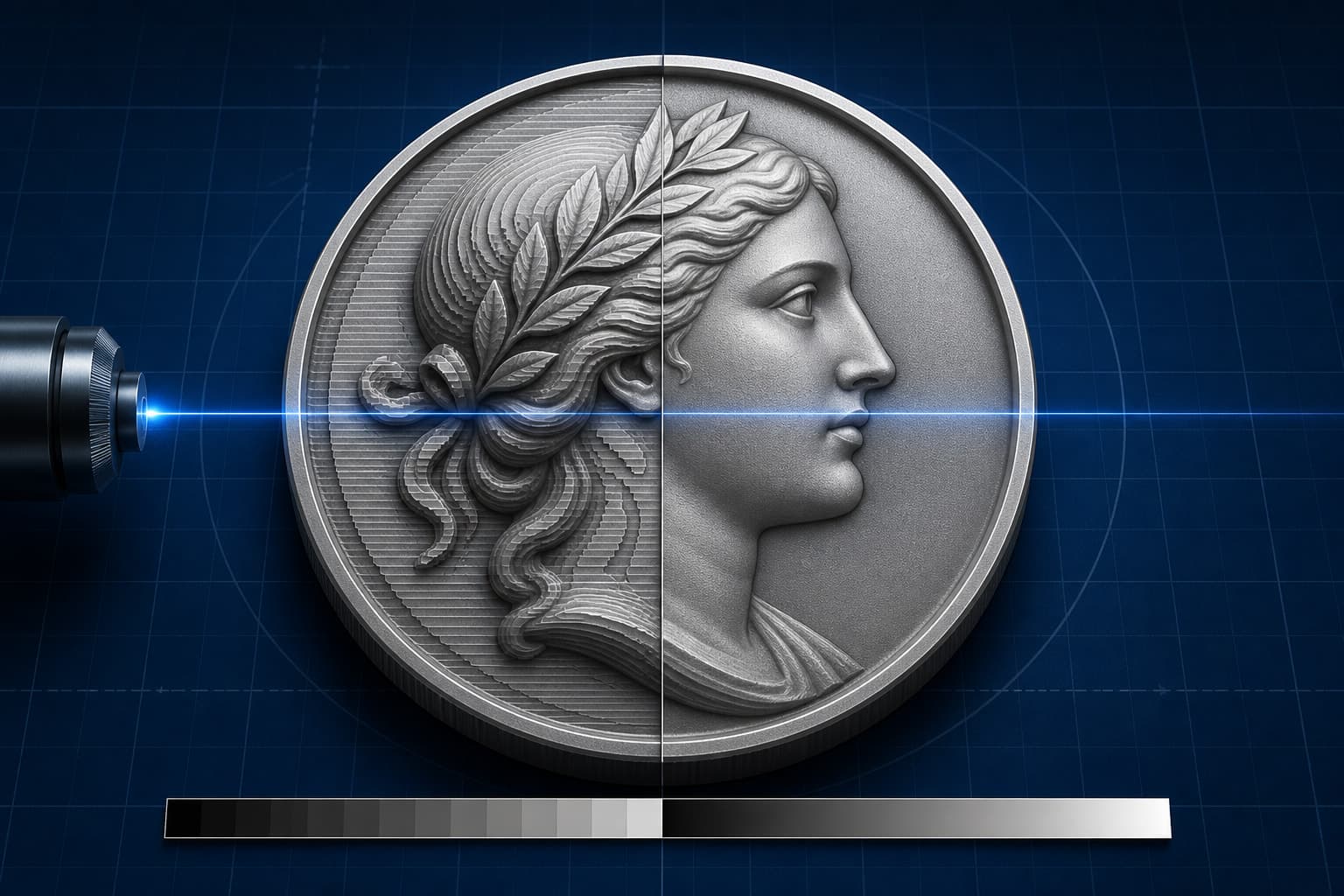
Use an 8-bit depth map when your LightBurn 3D Sliced job runs at 256 passes or fewer. Use a true 16-bit depth map when you need more than 256 distinct slice thresholds and your source, material, and machine can preserve the extra detail.
That is the useful answer. A 16-bit file can hold far more grayscale values, but the larger number does not automatically create a smoother coin, deeper engraving, or better portrait. The rest of the workflow decides whether those values survive long enough to reach the material.
This distinction matters now because LightBurn 2.1 supports 16-bit depth maps. Before you multiply your pass count and turn a two-hour job into an all-day burn, you need to understand what LightBurn is doing with the image.
The short decision table
| Your workflow | Use | Why |
|---|---|---|
| Up to 256 passes | 8-bit | There are already enough source levels to assign one threshold per pass. |
| More than 256 passes in LightBurn 2.1+ | 16-bit | LightBurn can use additional threshold values instead of repeating a limited 8-bit set. |
| Source was generated or saved as 8-bit | 8-bit | Converting the file to 16-bit later does not recreate discarded depth values. |
| Normal RGB image labeled 24-bit | Neither yet | It usually means three 8-bit color channels, not one 24-bit depth channel. |
| Uncalibrated material or first test | 8-bit | Machine, focus, power, speed, line interval, and material response are larger unknowns. |
If you remember one rule, make it this: choose bit depth from the number of useful thresholds in the complete job, not from the biggest number in the export menu.
What 3D Sliced mode does with a depth map
A depth map is not an ordinary black-and-white photograph. Each pixel stores a height or depth value. LightBurn's 3D Sliced mode turns those values into a stack of thresholded engraving passes.
The darkest parts of a standard depth map receive the full number of passes. Progressively lighter areas receive fewer. Pure white is left untouched. If you enable Negative Image, the relationship reverses.
This is why the phrase "grayscale engraving" can mislead people. In 3D Sliced mode, LightBurn is not simply assigning one laser-power value to every shade. It repeatedly thresholds the image to decide which pixels remain active on each pass. A LightBurn forum explanation of the 3D slice algorithm describes the threshold moving across the available gray range from white toward black.
The practical consequence is simple. Your number of passes sets the number of opportunities LightBurn has to separate depth layers. Your image bit depth sets how many distinct source values are available for those thresholds.
8-bit gives you 256 grayscale values
An 8-bit grayscale image can encode 256 values, from 0 through 255. That is enough for a clean one-to-one relationship when a job uses 256 passes: one available source level per threshold step.
If you run fewer passes, LightBurn groups the available grayscale range into larger steps. At 128 passes, for example, each threshold moves across roughly two source values at a time. That does not make the job wrong. It means the output has fewer physical layers by design.
For many jobs, 8-bit is the sensible choice:
- Your pass count is 256 or lower.
- The source has broad relief shapes rather than extremely shallow, gradual transitions.
- The material response introduces more variation than the extra digital precision could solve.
- You are still establishing focus, speed, power, frequency, line interval, and cleanup settings.
- You need a dependable test file that every image editor preserves correctly.
Do not call 8-bit "low quality." A well-built 8-bit depth map with a full tonal range can beat a nominally 16-bit file that contains bad geometry, clipped shadows, a flattened background, or values that were already posterized.
16-bit gives the slicer more thresholds to work with
A 16-bit grayscale PNG can encode up to 65,536 sample values. The W3C PNG specification confirms that grayscale PNG supports sample depths up to 16-bit.
That does not mean a laser will carve 65,536 clean physical levels. It means the file can describe much finer changes before LightBurn reduces them to the number of passes you selected.
The clearest benefit appears above 256 passes. With an 8-bit source, LightBurn eventually has to reuse threshold states because the image contains only 256 distinct values. With a true 16-bit source, a 512-pass or 1,024-pass job can draw from additional source values instead of repeatedly sampling the same limited set.
A LightBurn community discussion about 16-bit height maps captures the tradeoff well: extra thresholds may smooth gradual relief, but more passes also increase runtime. The material still has to respond consistently enough for the difference to survive.
Use 16-bit when all of these are true:
- You are using LightBurn 2.1 or newer.
- Your job genuinely benefits from more than 256 passes.
- Your depth-map generator produced real higher-precision values.
- Your editing and export pipeline preserves grayscale 16-bit data.
- Your test engravings show visible stepping that is not caused by focus, scan spacing, material, or bad source geometry.
A 16-bit container cannot repair an 8-bit source
This is the trap behind many "16-bit" workflows.
You generate an 8-bit map. You open it in an editor. You switch the document mode to 16-bit and save a new PNG. The new file is technically 16-bit, but its original 256 steps remain. The editor can store numbers between them now; it cannot know what the missing depth values were supposed to be.
Think of it as moving 256 stair steps into a taller building. You have more possible floors, but you did not add a ramp between the existing steps.
The same warning applies to intermediate tools. A generator may export 16-bit correctly, then a screenshot tool, browser editor, social upload, or casual image conversion can reduce it to 8-bit. Check the imported image's bit depth in LightBurn's status bar, as the official 3D Sliced guide recommends.
Why a 24-bit image is usually not a 24-bit depth map
A normal 24-bit RGB image usually stores three channels: 8 bits for red, 8 for green, and 8 for blue. That is color precision, not one grayscale channel with millions of independent depth values.
When LightBurn converts that image for a depth workflow, it does not inherit a magical 24-bit height field. The three channels describe color. A true depth map needs one unambiguous value for the depth of each pixel.
This matters because a file can look gray while still being RGB. If preserving depth precision is the goal, export a true grayscale 16-bit PNG from the tool that generated the map and avoid unnecessary color conversions.
How to choose the right export in five steps
1. Confirm the machine and mode
LightBurn documents 3D Sliced as a Galvo-only image mode. If you are using another controller or a normal grayscale power workflow, this exact threshold logic may not apply.
2. Set a defensible pass count
Base passes on the material, target depth, acceptable runtime, and prior tests. Do not choose 1,024 passes merely to justify a 16-bit export.
3. Match the export to the passes
- 256 passes or fewer: start with 8-bit.
- More than 256 passes: test a true 16-bit export.
4. Preserve the file
Avoid screenshots, messaging apps, browser recompression, and image tools that silently convert the file. Import the original grayscale PNG directly.
5. Run an A/B material test
Use the same source, dimensions, focus, speed, power, frequency, line interval, pass count, and cleanup settings. Change only the file bit depth. If you change three machine settings at the same time, the comparison tells you nothing.
Inspect the shallow gradients, facial transitions, curved coin fields, and hair or fabric detail. Those are the areas where threshold stepping is most likely to show. Also record runtime. A smoother result that takes four times as long may not be a better production setting.
The source geometry still matters more than the bit depth
Bit depth describes how finely a map can encode depth. It does not decide whether the depth is correct.
A normal photograph contains lighting, shadows, reflections, texture, and perspective. None of those is automatically physical height. An image-to-depth system must infer or reconstruct the geometry. If the nose is flattened, the coin rim tilts, or the background becomes a hill, saving more shades of the same error only preserves the error more precisely.
Start with a map that has coherent geometry, a controlled background, a useful black-to-white range, and recoverable detail. If you need a free manual starting point, Voxelase maintains a separate DepthGen Free Edition. For production workflows, DepthGen Pro V3 exports both 8-bit and true 16-bit PNG along with EXR, STL, and OBJ, so you can choose precision for the actual downstream job instead of regenerating the source.
Machine settings remain part of the result. Keep a material log, and use a laser power and speed table by material as a starting framework rather than treating any published setting as universal.
Does 16-bit always improve a LightBurn engraving?
No. It gives LightBurn more source values to sample, but the improvement depends on pass count, source precision, material response, machine setup, and whether the original map contains smooth, correct geometry. At 256 passes or fewer, a strong 8-bit map is usually sufficient.
Can I convert an 8-bit depth map to 16-bit?
You can change the file format, but you cannot recover the discarded depth values. A later conversion may help if you perform new high-precision edits, but it does not turn the original 256 levels into newly measured geometry.
How many passes should I use with a 16-bit depth map?
There is no universal number. LightBurn specifically identifies 16-bit as useful when you plan to run more than 256 passes. The correct count still depends on material, target relief, acceptable heat, machine behavior, and runtime. Test a small representative section before committing to the full job.
The practical verdict
Use 8-bit by default. It is compatible, compact, and fully matched to jobs at 256 passes or fewer.
Move to 16-bit when you have a true high-precision source, LightBurn 2.1 or newer, a pass count above 256, and a material test that shows the extra thresholds improve the relief enough to justify the runtime.
That is a narrower recommendation than "16-bit is better." It is also the one that keeps you from spending hours engraving additional passes that repeat information your source never contained.